


Add Stamps, Stickers and Sticky Notes in PowerPoint | PPT Productivity
If you’re searching for how to add stamps, stickers, or sticky notes to PowerPoint slides, this...
 Courtney
This post is a step by step guide for adding special character formatting or symbols to your PowerPoint presentation.
Superscript is a font formatting to offset characters slightly above a line of font. For example: in the expression X2 the 2 is shown in superscript. Superscript is commonly used in the following scenarios:
Subscript is a font formatting to offset characters slightly below a line of font. For example: in the compound N2 the 2 is shown in subscript. Subscript is typically used in:
There are a couple of different ways to make font Superscript in PowerPoint:
In standard PowerPoint, you need to enter the text to convert to Superscript, then select the text.
From the Home tab on the PowerPoint ribbon, select the flyout menu from the Font feature group. You will see an option for Superscript under the Font Effects grouping.
Check the checkbox to convert selected characters to superscript. Note that by default the superscript will be offset 30%, but you can change the offset % (which will move the superscript characters higher or lower relative to the rest of the line of text). Your selected text will now appear in Superscript format.

You can convert text to superscript in PowerPoint via a keyboard shortcut to set superscript in PowerPoint. Select the text you want to convert to superscript format and then select: Ctrl, Shift, Plus sign (+) at the same time.
If you are a PPT Productivity Power Tools user, you can quickly convert text to superscript or add new text in superscript format, using the PPT Productivity superscript feature button on the PPT Productivity ribbon.
There are a couple of different ways to make font Subscript in PowerPoint:
In standard PowerPoint, you need to enter the text to convert to Subscript, then select the text.
Next from the Home tab on the PowerPoint ribbon, select the flyout menu from the Font feature group. You will see an option for Subscript under the Font Effects grouping.
Check the checkbox to convert selected characters to subscript. Note that by default the subscript will be offset -25%, but you can change the offset % (which will move the subscript characters lower or higher relative to the rest of the line of text).

You can apply subscript formatting to text in PowerPoint via the PowerPoint superscript shortcut.
Select the text you want to convert to subscript format
Select the following shortcut key combination: Ctrl and the Equal sign (=) at the same time: Ctrl + =
Your selected text will be updated to appear in subscript.
There are a few different options for how to add symbols to your PowerPoint slides.
To add symbols to your PowerPoint slide, go to the Insert tab on the Ribbon, then Symbols and then select Symbol. The Symbol popup box will appear.
Selecting symbols requires you to first select a Font from the Font dropdown. The main Font options with symbols in PowerPoint are Webdings, Wingdings, Wingdings2, Wingdings3 and ZDingbats
Select a subset of symbols from the Subset dropdown, and press Insert to add them to your presentation.

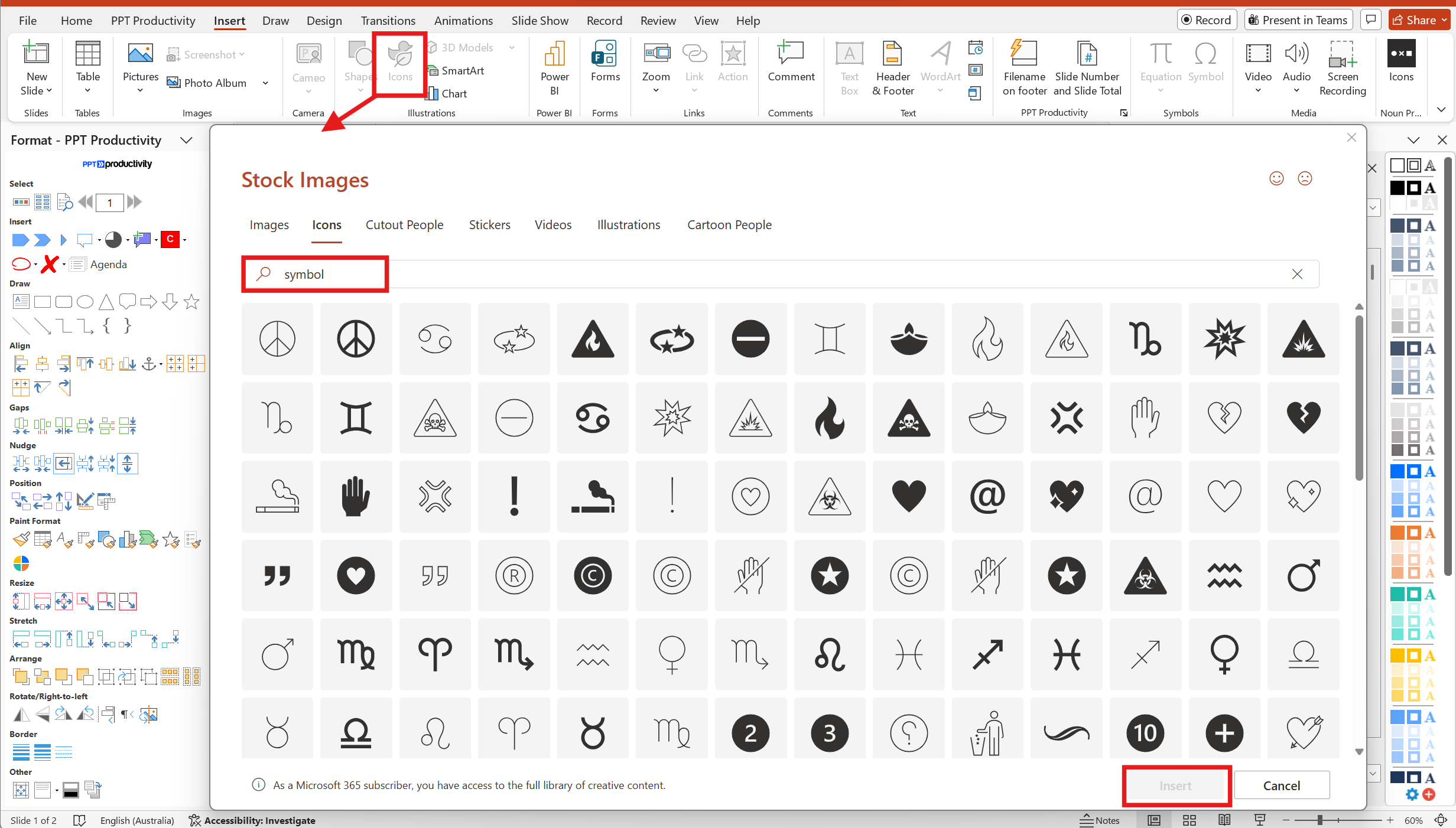
If you have traditionally used PowerPoint symbols for things like wingdings, we recommend taking a look at the PowerPoint icons collection - there is a much larger range, they are editable and best of all you can search by symbol name, category or descriptor. Here are the steps for adding symbols in PowerPoint using the in built Icons collection:
Go to the Insert tab on the PowerPoint Ribbon, then select Icons. A popup box will appear - note that the popup has multiple 'tabs' with different types of objects to add to your slides, but by default the Icons tab will be selected.
Use the search bar on the Icons tab in the popup box to search for a specific type of symbol; key symbol in the search to see what PowerPoint has defined as a symbol collection, or you can also use the category tiles and scroll through the options if you are unsure of the specific symbol you need. For example the Commerce category has the various world currency symbols as well as other icons related to commerce which might be useful.
You can add multiple icons at once. After you have selected the icons you would like to add to your slide, click the insert button. Note that the icons will have been added to your page layered upon each other, so you will need to drag each icon into your preferred location.
Many of the special characters are alternate keys on your keyboard and can be accessed via the shift key. Special characters include things like ; ~ ` But for other special characters not available on your keyboard, you can follow the same approach as symbols to add special characters to your PowerPoint slide.
Go to the Insert tab on the Ribbon, then Symbols and then select Symbol. The Symbol popup box will appear.
Selecting symbols requires you to first select a Font from the Font dropdown.
Select a subset of symbols from the Subset dropdown, and press Insert to add them to your presentation.
If you have PPT Productivity add-in for PowerPoint, you can use the custom shortcut key feature to add a shortcut for inserting symbols to your slide.
From the PPT Productivity Ribbon, click Shortcut Keys then Manage Custom Shortcut Keys.
Type symbol into the Command Name field, then click Symbol...[SymbolInsert] which will display in the search results.
Choose a shortcut key combination for Insert symbol, enter it into the Assign new shortcut > Press shortcut keys field and then click close.
Once you have set up this shortcut key, you can use it to open the Insert Symbol popup menu.

There are a couple of ways to add emojis to your PowerPoint presentation.
The Windows Emoji picker is available across Office apps. To use it:
Place your cursor in the position on the slide where you want to insert the emoji.
Hold down the Windows key on your keyboard along with the period / full stop key (.). This will display the Emoji Picker popup. From here you can scroll to find your preferred emoji.
Click the emoji(s) to add to your PowerPoint slide, and close the popup box when you are finished

Microsoft has included emojis as Faces in the PowerPoint Icons Popup. To add emojis to your PowerPoint slide using the Icons popup:
Go to the Insert tab on the Ribbon, then Icons. The Icons popup box will appear.
Select Icons from the Ribbon menu on the popup and then select Faces from the Ribbon menu beneath the search bar. You can then scroll down the results to select the relevant emoji. You can alternatively type Emoji in the Icons search bar, however this search only returns a subset of the emojis available in the Faces menu.
Select the emojis/ faces to add to your presentation and then click Insert to add them to your PowerPoint slide. Note that emojis added from this option are in black and white only.
Note: The emojis shown in the image below are available when using Microsoft 365 subscription Office. Microsoft Office 2019 and earlier versions may only have a subset of Icons available.


Start your 30 day free trial - Microsoft Office for Windows
Start Free Trial

