


Can I insert slide totals with slide numbers in PowerPoint? Yes!
PPT Productivity add-in recently released our Manage Slide Numbering feature for PowerPoint....
 Courtney
Note - this blog post was originally written in 2023 and it provided an overview of how to use the Compare and Merge features in PowerPoint. We have since updated the post, because Microsoft announced that the Compare and Merge features in PowerPoint would be retired from version 2502 which was released in March 2025 (the features are unavailable from v. 2502 onwards). The blog post has been updated to step through the options now available for PowerPoint track changes alternatives for people using Microsoft 365 Windows (versions after 2502).
PowerPoint is a powerful tool for creating and delivering presentations. As you refine your presentation, there are features you can use for collaboration and review. If you want to share your presentation with others and get their feedback, there are a couple of ways that you can track changes in PowerPoint and view comments.
PowerPoint does not have a 'Track Changes' feature like Microsoft Word. But this blog post steps through the alternative options available in PowerPoint to help you incorporate review feedback and have visibility of who makes changes or recommendations in the review process.
In addition to Microsoft's Collaboration features (the replacement for the Compare and Merge features), we have included information about PPT Productivity add-in's Sticky Notes for PowerPoint. Sticky Notes are a great alternative to the standard PowerPoint Comments feature when you want to do markup annotations on your presentation that are directly viewable on each slide but without needing reviewers to make changes directly.
The following options assume that you have prepared a PowerPoint presentation that you would like to share with colleagues or peers for review.
In order to use PowerPoint's collaboration features, you need to share your presentation by sharing a link (rather than by sending a copy of the presentation). Your presentation will need to be saved on a share drive in order to use the Collaboration features (for example your company OneDrive, or even a personal OneDrive). You cannot share a link to your presentation if it is saved on your local machine.
There are a couple of ways to share a file via a link. To find the options, open your presentation and got to to File > Share
Use the share with people option to send an invitation to collaborate and reivew the document without needing to send a separate email. Select Share with People option in the Share menu. A Share with People button will appear beside it. Click this button.

A popup will display. Enter the name, group or email addresses for the reviewer(s) you would like to send the presentation to (name and group options are available for people within your organization, you will need to enter an email address to send the link to someone outside your organization).
You can either add a message in the popup and click send, or you can click 'copy link' if you would prefer to send the link a different way (for example if you're just sending a note via Microsoft Teams).
By default a pencil icon should appear beside the panel to enter the email address (refer to the screenshot below).

Note - you need to enter at least one name, group or email address before you can copy the link.
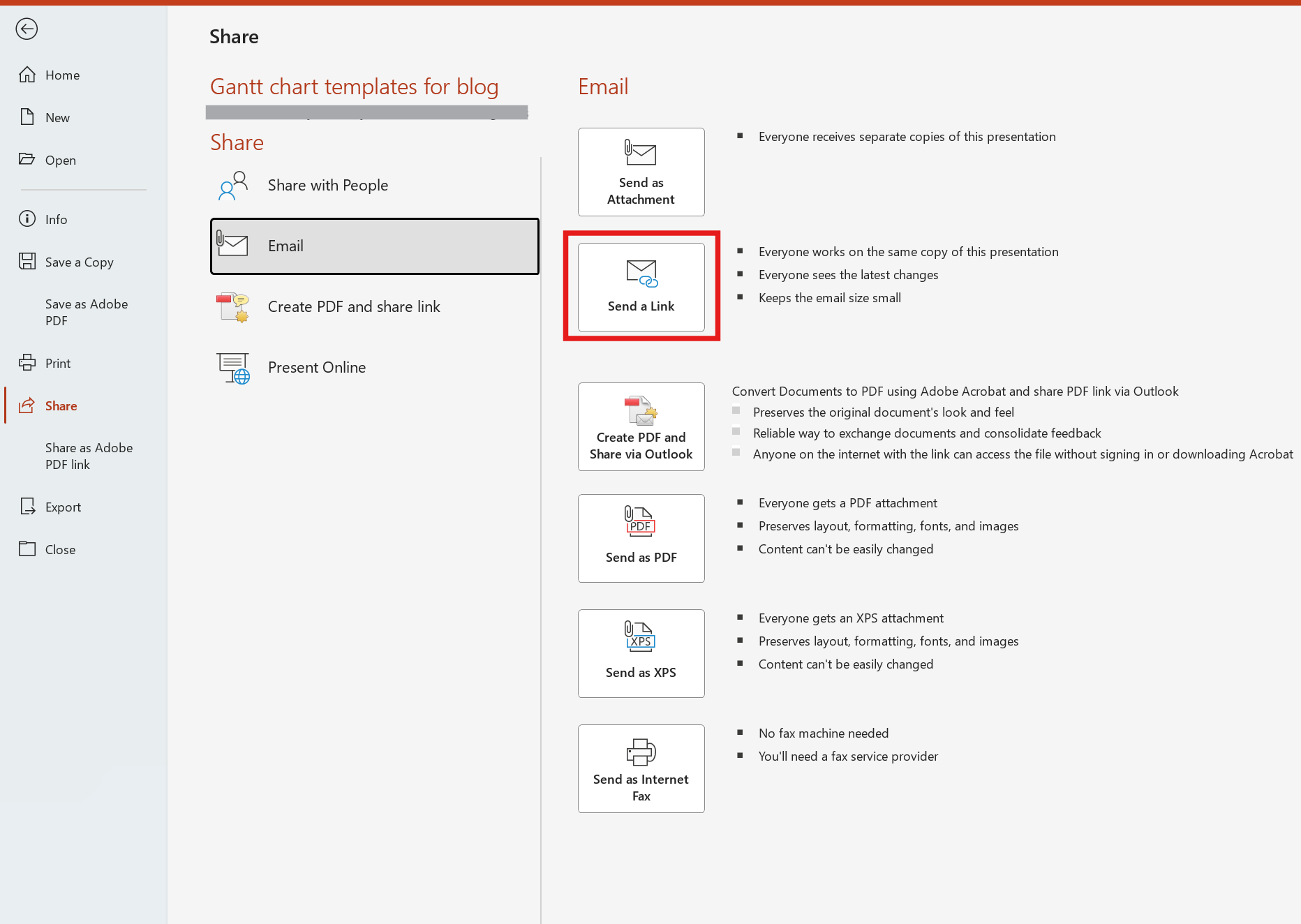
Use the share link via email option to send an email to your reviewers. From the Share menu select Email, and from the list of email options select the Send a Link button.
Once you click this button, your email client should launch with a link to the presentation ready in an open draft email.
There are three ways to capture feedback in PowerPoint:
You have provided your reviewers with a link to your presentation. This means that they will be able to access and edit the presentation at the same time as you. Reviewers can add, change or delete content.
If you are accessing the presentation at the same time as any of the reviewers, an icon with their image or initials will appear at the top of PowerPoint. An outline will also appear on any slides where they are making changes, so that you are aware the specific content is being updated.
After a reviewer has made changes to any slide, the slide(s) changed will display a blue dot to the right of the slide thumbnail in the thumbnail view.
Reviewers can also use the Comments feature to add comments to the presentation, rather than making changes directly. To do this:

There is no longer a Revisions pane following the v 2502 update. Wondering how to see who changed a slide? PowerPoint has a Show Changes button, which launches a view that you can use to review changes made by you or by others and it includes the initial of the person who made the changes. If any of the changes have conflicted (for example if you and a reviewer have made changes to the same textbox on a slide), the conflicting changes will be displayed in the Show Changes view. You can review the conflict and choose how to resolve it.
The Comments pane is used to add comments to PowerPoint, and also to review the comments. Once comments have been added, you can reply to comments, or delete comments.
Comments do not display directly on each slide - they appear to the right of screen in the Comments pane.
If your PowerPoint reviewers are providing feedback without making changes directly (which is typically the case when sending to senior team members or clients for review), the standard PowerPoint Comments feature has some limitations:
An alternative to using PowerPoint comments is PPT Productivity add-in's Sticky Notes for PowerPoint. PPT Productivity's Sticky Notes feature adds digital sticky note shapes to the top corner of PowerPoint slides. You can assign different sticky note colors to different reviewers, and the notes will also by default display initials of the reviewer (this can be customized to change or remove initials). Reviewers also have the option to use the sticky note callout lines, to point to specific parts of the slide.
Navigating through a PowerPoint presentation to view sticky note feedback is easy using the 'find next sticky note' button. Once you finish incorporating feedback, you can delete all sticky notes in a single click using the 'delete all sticky notes in PowerPoint' button.
Sticky notes will display when viewing PowerPoint in presentation mode, so they are super helpful if you need to have a team meeting to discuss review notes and proposed updates.
To use the sticky notes feature for PowerPoint, the reviewer needs to have PPT Productivity PowerPoint add-in.
Learn more about Sticky Notes for PowerPoint or sign up for the free PPT Productivity add-in 30 day trial with access to Sticky notes and 200+ other timesaving features (you won't be asked to provide credit card details to access, it's a genuine free trial). PPT Productivity is a time-saving add-in that embeds in PowerPoint and makes it faster to create, refine and reuse content in PowerPoint.
| Plaform | Compare/ Merge Feature Available? | Notes |
| Windows – PowerPoint 2021/2019/2016 | Yes | |
| Microsoft 365 Windows (version 2502+) | No | Feature has been retired and replaced by the collaboration features |
| PowerPoint for Mac | No | The Compare/ Merge feature is not available |
| PowerPoint Online | No | Compare / Merge is not available |
We hope this post has helped you understand the options available for tracking changes in PowerPoint.

Start your 30 day free trial - Microsoft Office for Windows
Start Free Trial

