An appendix in PowerPoint is a section at the end of a presentation that contains additional information or references that may not fit in the main slides. A PowerPoint appendix can be a single slide, or multiple slides and it can serve multiple uses. The appendix can be useful for providing more details, examples, data, sources, or explanations that support your main points, but are not essential for understanding them. It can also help you avoid cluttering your PowerPoint slides with too much text or information that may distract your audience from your key messages.
This article covers what is an Appendix, how to create an Appendix in PowerPoint, Benefits and Tips.
How to create an Appendix in PowerPoint?
First, decide what information you want to include in your appendix. You may want to review your PowerPoint presentation and identify any gaps, questions, or clarifications that your appendix can address.
Create a new slide at the end of your presentation. You could title it "Appendix" or something similar like References, Notes or Further Reading. If you plan to have multiple slides in your Appendix, you might choose to add a subtitle or a brief introduction to explain the purpose of your appendix. For a single Appendix Slide this is probably unnecessary.
Add the content to your appendix slide or slides. You can use text boxes, tables, charts, images, or any other elements that suit your needs. You can also add hyperlinks, citations, or footnotes to reference your sources.
Format your appendix slide /s according to your preferences and the style of your PowerPoint presentation. You may want to use a different color scheme, font size, or layout than your main slides to distinguish your appendix from the rest of your presentation.
If your appendix is longer than one slide, you can add appendix slide numbers or labels to help your audience navigate through it. You can also add a back button or a link to return to the main presentation.
Test your appendix and make sure it works properly and smoothly. You may want to rehearse your presentation and check if your appendix is clear, relevant, and helpful for your audience.
PPT Productivity makes creating a PowerPoint Appendix easy!
PPT Productivity is a PowerPoint add-in that makes it easier to do common tasks in PowerPoint. PPT Productivity's Send to Appendix feature for PowerPoint (Also known as the send slide to back feature) lets you send any slide in your presentation to the end of your PowerPoint presentation in a single click (so you can quickly move slides to your Appendix). If your PowerPoint deck doesn't have an Appendix section when you click the feature, an Appendix Slide is created automatically as the first slide is moved.
When reviewing your PowerPoint presentation, PPT Productivity's Send Slide to Appendix feature lets you remove a slide from the main presentation and send to back of deck. You can then review the slides moved to the appendix, to decide whether to keep the slide in the appendix or delete it entirely from your presentation.
Appendix in presentation: Send Slides to the PowerPoint Appendix with one click and create Appendix Slide divider
Benefits of using an Appendix in PowerPoint
Consultants use Appendix slides a lot. Primarily as a way to ensure supporting information is readily available for a PowerPoint deck without making the core deck too lengthy.
Using an appendix in PowerPoint has several benefits for both you and your audience:
It helps you keep your PowerPoint presentation concise and focused on the main points.
It allows you to provide more information without overwhelming or distracting your audience.
It gives your audience the choice to access more details if they are interested or curious.
It enhances your credibility and authority by showing that you have done thorough research and analysis.
It makes your presentation more interactive and engaging by inviting your audience to explore more topics.
Can you hyperlink to a PowerPoint Appendix Slide from the main presentation?
Yes, you can hyperlink to an Appendix slide in PowerPoint from the main presentation. To do this:
Step 1: Navigate to the point in your presentation where you want to be able to refer to the appendix.
Step 2: Select the reference point where you would like to insert a link (for example, you might simply have the words refer to appendix at the end of a statement on a slide).
Step 3: Select the specific text, then right mouse click, select link from the right click menu, then select insert link.
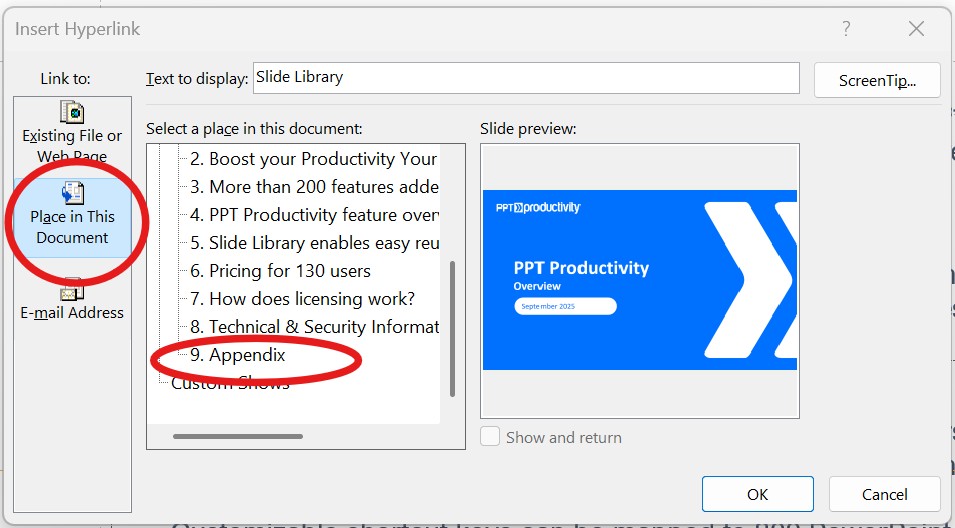
Step 4: A popup screen will display. From the left hand side, select 'Place in this document' for the link to. Then scroll down the options that appear in the 'Select a place in this document' window until you find the Appendix Slide. Select the Appendix Slide and click ok.
How to insert a link to an Appendix Slide from another slide in a PowerPoint deck
The word(s) will now have a hyperlink embedded. Clicking on the words will navigate you directly to the Appendix Slide in your presentation.
Tips for using an Appendix in PowerPoint
To make the most of your appendix in PowerPoint, here are some tips to keep in mind:
Use an appendix only when necessary. Don't add an appendix slide just for the sake of it. Only use it when you have relevant and valuable information that does not fit well in your main slides.
Keep your appendix concise and clear. Don't overload your appendix with too much information or make it too long. Only include what is essential and useful for your audience.
Label and organize your appendix properly. Use clear and consistent labels for each appendix and place them on separate slides. Organize the content of each appendix in the same order as it appears in your PowerPoint presentation.
Refer and link to your appendix slide appropriately. Mention and hyperlink to your appendix when it is relevant and helpful for your audience. Don't force them to go to your appendix if they don't need to or want to.
Share and print your appendix if needed. If you hide your appendix when presenting your PowerPoint deck, make sure to share it with your audience later, either by sending them your presentation file or by converting it to a PDF or Word document (or print your appendix and distribute it to your audience along with the main presentation).
Frequently Asked Questions
1. What is an appendix slide in PowerPoint?
An appendix slide is a section at the end of a presentation containing additional information, references, or supporting detail that doesn’t fit in the main slides.
2. Why should I use an appendix in a PowerPoint presentation?
Appendices help avoid clutter, provide supporting detail, and keep the main narrative focused.
3. What should I include in a PowerPoint appendix?
More detailed information that supports the story presented in the main part of the deck. This might include things like data, sources, examples, explanations, charts, tables, references.
4. How do consultants use appendix slides?
Consultants rely heavily on appendices for things like detailed financials, methodologies, backup analysis.
Chief Productivity Officer Lee-Ann has been working with PowerPoint for more than 18 years. Lee-Ann was initially an office manager and assistant, then a Production Specialist at Boston Consulting Group. Lee-Ann is now Chief Productivity Officer at PPT Productivity. Lee-Ann nominates PPT Productivity's Remember/Set Size & Position feature as one of her favourite.


 Lee-Ann