


Can I insert slide totals with slide numbers in PowerPoint? Yes!
PPT Productivity add-in recently released our Manage Slide Numbering feature for PowerPoint....
 Lee-Ann
Standard PowerPoint Master Layouts come with built in image/ picture placeholders. If you want to create a PowerPoint slide with the standard layouts, simply open the standard default PowerPoint Presentation and select the layout with picture placeholder that suits your needs. But you can also create your own custom picture placeholder layout in PowerPoint, for use in your presentations. This article outlines the steps to create and change PowerPoint picture placeholders.
You can create customized picture placeholders in PowerPoint and save to your slide layouts, so that you can easily reuse the placeholder layout in other PowerPoint presentations.
Rather than simply adding pictures or images to PowerPoint slides, creating customized layouts with image placeholders means that you can easily reuse the layouts (with different images). This enables greater consistency across your PowerPoint presentations and also saves time.
To add a custom picture/ image placeholder slide to your PowerPoint Master Layouts, open your PowerPoint Slide Master. To do this, go to the View Tab on the top PowerPoint ribbon and select Slide Master. From the Slide Master view, go to the Master Layout group, select Insert Placeholder and choose Picture.

A new Master Layout will be added to your PowerPoint presentation. Use the cursor to draw the image placeholder on your slide to the desired size and position.
By default the image placeholder will be a rectangle, however you can change the shape of the image placeholder on the PowerPoint layout.
To change the shape of a picture placeholder on a PowerPoint layout, first select the picture placeholder. Then from the PowerPoint Shape Format Tab (or PPT Productivity users can also find it on the PPT Productivity Tab), select Edit Shapes then Change Shape.


From the dropdown shape gallery that appears, select the shape of the new Picture Placeholder.

You can add additional PowerPoint placeholders the same way you added the Picture Placeholder to your PowerPoint Slide Layout.
Once you are done adding your placeholders, close the PowerPoint Master Slide View. You can now use your new slide layout in your PowerPoint presentations.
To use a customized picture placeholder slide in a PowerPoint presentation, in Normal view, from the PPT Productivity tab select the custom layout you have created (if you don't have PPT Productivity add-in for PowerPoint, you can select a custom layout but with a few extra steps: select your PowerPoint slide, right clicking on your mouse, navigating to Layout on the popup menu and then selecting your PowerPoint layout). The selected PowerPoint slide layout will update to your new custom slide layout.

Alternatively, from the Insert tab on the PowerPoint Ribbon, select New Slide and choose the new custom layout. A new slide based on your custom layout will be inserted into your PowerPoint presentation.
Click on the image icon in the center of the picture placeholder and select from your files the image you want to add.

You can also add a picture to your PowerPoint placeholder using the Insert tab on the PowerPoint ribbon. Select the source of the image from one of the dropdown menus in the image group - for example Pictures > Insert Picture From > This Device... then select your picture.

The selected picture/image will be inserted into the placeholder created in the Master Slide Layout.

Use this same layout to add multiple slides with pictures to your PowerPoint presentations.
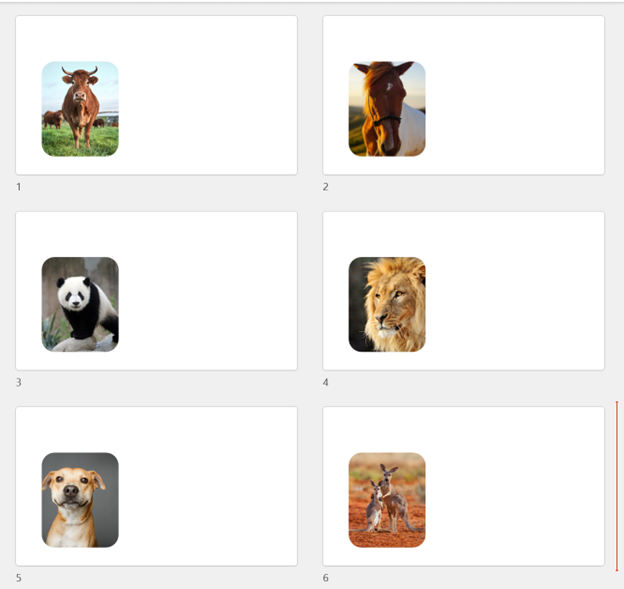
In this article we’ve explained how to create a Slide Layout with picture placeholders in a PowerPoint presentation. This means that this slide layout is unique to this PowerPoint presentation. If you want to create Master Slide Layouts with picture placeholders to be used across multiple PowerPoint presentations, you can create a custom PowerPoint Template. Read our great blog about how to create PowerPoint templates if you need guidance in creating templates in PowerPoint.
And remember that if you want to use your current presentation as a new PowerPoint Template, save the file as a .potx file type.
Hopefully this guide makes it easy for you to add picture placeholders to your PowerPoint presentations. You can find more hints and tips guides for other PowerPoint tasks on our blog. And remember, if you're often working in PowerPoint, PPT Productivity add-in can boost your productivity with 200+ features to make creating, refining and reusing slides easier. Learn more on the website and sign up for the free 30 day trial if you'd like to test out the features (you won't be asked to provide credit card details to access, it's a genuine free trial).

Start your 30 day free trial - Microsoft Office for Windows
Start Free Trial

